
Connected, but No Address
The phone associates with Wi-Fi, the signal is full — and then it spins on "Obtaining IP address" before falling back to a 169.254.x.x link-local address, still unable to reach anything. In an office it is the new colleague whose laptop never gets an address, no matter how many times they reconnect.
Most people start guessing: is the DHCP server down, is the pool exhausted, was the VLAN misconfigured? Before guessing, there is a faster move — read the DHCP DORA exchange in a capture. Lay out the actual conversation between client and server and see exactly where it stops.
DHCP (Dynamic Host Configuration Protocol) hands terminals an IP address, subnet mask, gateway and DNS settings automatically. It runs over UDP, server port 67 and client port 68. One complete address acquisition is the well-known DORA exchange. Learn those four steps and most "no IP" problems sort themselves into place.
A boundary note: this article analyses a pcap that is already open and parsed. It is offline troubleshooting, not live capture.
DORA: How an Address Gets Handed Out
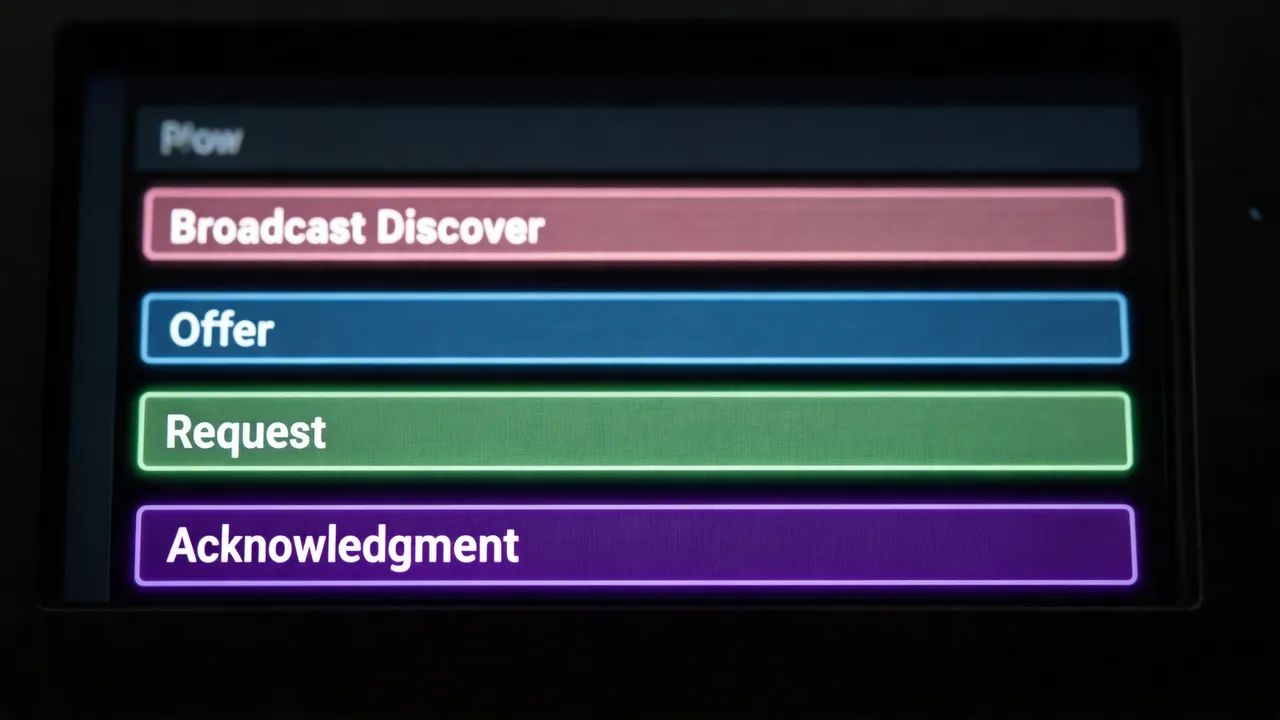
DORA is an acronym for the four messages in one address acquisition. Memorise them and a capture gains a skeleton.
D — DISCOVER. The client has just joined and has no address. It sends from 0.0.0.0 to the broadcast address 255.255.255.255, effectively asking, "Is there a DHCP server here? Can someone give me an address?" This is where the flow begins.
O — OFFER. A DHCP server that hears the broadcast replies with a candidate address and configuration. If several servers answer, the client may see multiple OFFERs.
R — REQUEST. The client picks one offer (usually the first) and broadcasts a REQUEST, saying, "I choose the address offered by that server." Broadcasting lets the other servers know they were not chosen so they can return their reserved addresses to the pool.
A — ACK. The chosen server replies with an ACK, formally leasing the address and supplying the full configuration — mask, gateway, DNS, lease time. Only after the ACK does the client truly have an address to put on its interface.
When all four packets complete, an address is landed. In PcapDecoder's DHCP dissection each step maps to a dhcp.msg_type value (1, 2, 3 and 5 respectively), which is the direct way to tell "which step are we on."
How-to: Filter for dhcp and Follow the Four Steps
Once the pcap is open and parsed, work in three steps:
Step 1 — Filter for dhcp. Narrow the view to DHCP packets with the dhcp protocol filter (UDP 67/68). Unrelated traffic disappears and the four-step conversation becomes obvious. If the filter returns nothing, the capture simply contains no DHCP exchange — likely the capture did not cover the moment the client joined. Rule that out first.
Step 2 — Read the msg_type sequence to reconstruct the dialogue. The filtered packets are ordered in time. Open each one's DHCP layer: the msg_type field says DISCOVER, OFFER, REQUEST or ACK (plus NAK, DECLINE, RELEASE, INFORM and others). Read the sequence as a dialogue. A healthy flow shows DISCOVER → OFFER → REQUEST → ACK in order.
Step 3 — Find the break, then open that packet. The step after which nothing follows is roughly where the fault lives. Click the packet and the protocol hierarchy tree opens in the detail pane, listing every parsed DHCP field — address, lease, server identifier, hostname — above a hex dump of the raw bytes; clicking a field highlights its byte range. It all happens locally; the pcap never leaves the machine.
Key Fields: msg_type, lease_time, server_id
DHCP's useful information is concentrated in a handful of fields, and their keys match Wireshark's filter field names for easy cross-checking.
dhcp.msg_type— the message type, central to identifying the step. DISCOVER=1, OFFER=2, REQUEST=3, DECLINE=4, ACK=5, NAK=6, RELEASE=7, INFORM=8. A NAK (6) means the server explicitly refused.dhcp.op— operation code. 1 is BOOTREQUEST (client request), 2 is BOOTREPLY (server reply); use it to tell direction at a glance.dhcp.xid— transaction ID, shared by all four packets of one DORA exchange. When several clients acquire addresses at once, the xid keeps each dialogue separate.dhcp.client.mac— the client MAC, confirming which machine sent a request.dhcp.ip.your— the address the server is assigning ("your IP address"), present in OFFER and ACK. It is the direct answer to "what address will I get?"dhcp.requested_ip— the address the client explicitly asks for in REQUEST (option 50); it should match what the OFFER offered.dhcp.server_id— the responding server's address (option 54). With multiple servers, this distinguishes which OFFER came from whom, and REQUEST names the chosen one.dhcp.lease_time— the lease duration in seconds (option 51). A very short value (tens of seconds) usually signals a misconfigured server or a pool under pressure.dhcp.subnet_mask— the subnet mask (option 1), paired with the address.dhcp.hostname— the client hostname (option 12), handy for mapping an address back to a device.
The routine is: use msg_type to fix the step, xid to group one exchange, then ip.your / requested_ip for the address, server_id for the server and lease_time for the duration. Together they make the server's intent clear.
What Each Stalled Step Tells You
Matching the break to its cause is where this method earns its keep.
Stops at DISCOVER (requests, no OFFER): the client calls and nobody answers. Typical causes — no DHCP server on the segment, the server's DHCP service not running, client and server in different broadcast domains (VLAN isolation, missing relay), or a firewall blocking UDP 67/68. Check server availability and reachability first.
Stops at OFFER (offered, no REQUEST): the server gave an address but the client never asked for it. Uncommon, and usually a client-side problem — it received the OFFER but failed validation, or never processed it; the OFFER may also have been lost.
Stops at REQUEST (requested, no ACK): the client chose an address but the server never confirmed. The address may have been taken in the meantime, the server may have failed, or the ACK was lost. The client still ends up with no address.
NAK instead of ACK: the server refused outright — the requested address may be in use, a lease conflict, or a configuration mismatch. After a NAK the client typically restarts with a fresh DISCOVER.
All four steps complete and an address is assigned, yet there is still no connectivity: that is no longer DHCP's problem. Look toward the gateway, routing, DNS or upper-layer authentication. DHCP only hands out an address; it does not guarantee access.
What Changes with DHCPv6
On an IPv6 network the shape is familiar but the messages differ. DHCPv6 uses UDP 546 (client) and 547 (server), and PcapDecoder's dissection covers it too. The four steps become SOLICIT → ADVERTISE → REQUEST → REPLY — the same idea as DORA: discover a server, get an offer, request, confirm.
The troubleshooting approach carries over verbatim: filter, read the message-type sequence to see how far it got, find the break, open the packet for its fields. Only the types and ports differ; the logic does not. So whether it is IPv4 or IPv6, "follow the four steps and find the break" holds.
Related reading: "Diagnosing a Slow Network with Packet Capture" deals with quality problems after an address has been assigned; this article stays with address acquisition itself.