

The Structure of a PCAP File
The first time many people open a pcap file (in a hex editor), they're surprised: it isn't text, but a stream of binary. In fact, its structure is remarkably simple, and can be understood like this:
File header (24 bytes)
├── Magic number 0xA1B2C3D4 (identifies this as pcap, and hints at byte order)
├── Version numbers
└── Link-layer type (Ethernet? WiFi? Raw IP?)

Packet record 1
├── Timestamp (seconds + microseconds)
├── Captured length / original length
└── Raw packet bytes (a complete copy of the link-layer frame)

Packet record 2
├── ......
└── ......
(and so on until the end of the file)
Key point: a pcap file stores "the raw bytes as seen by the network interface." It doesn't parse protocols; it just faithfully records. So those 00 1A 2B bytes you see in a hex editor are the Ethernet frame itself.
PCAP vs pcapng
pcapng (pcap next generation) is the successor format, built to address several hard limitations of pcap:
| Feature | pcap | pcapng |
|---|---|---|
| Multi-NIC / multi-interface capture | One file can hold only one link type | One file can contain multiple interfaces, each with its own configuration |
| Timestamp precision | Microseconds | Nanoseconds |
| Metadata | None | Interface descriptions, capture statistics, comment blocks |
| Extensibility | Fixed-length records | Block structure, forward-compatible extensions |
Practical advice: prefer pcapng for new captures (Wireshark, tcpdump's -p flag, and the default output of newer versions all produce it); if you receive an old .pcap from someone else, don't worry — all modern tools remain backward compatible.
How to Open a PCAP File
Depending on your device and scenario, there are four common approaches:
- Desktop deep analysis: Wireshark / tshark. The most feature-complete, but requires installing a suite and learning filters.
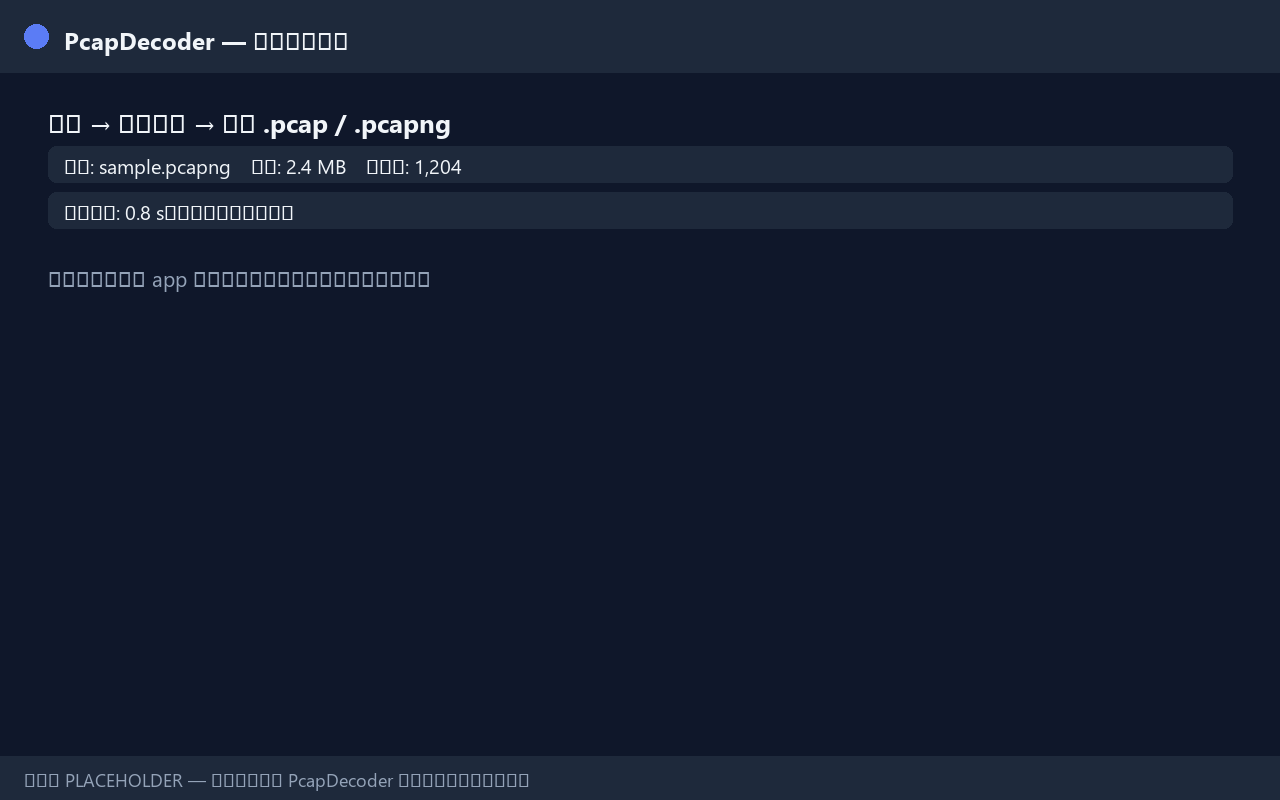
- Mobile quick view: PcapDecoder opens it directly (local parsing, no file upload). Ideal for on-site troubleshooting or inspecting captures on your commute.
- Command-line batch processing:
tshark -r file.pcaporcapinfos file.pcapfor statistics — good for scripting. - Emergency text extraction:
strings file.pcapcan pull URLs, email addresses, and User-Agent strings out of plaintext — a crude fallback for when packets are dropped or tools are unavailable.
After Opening with PcapDecoder: Four Steps to Conclusions
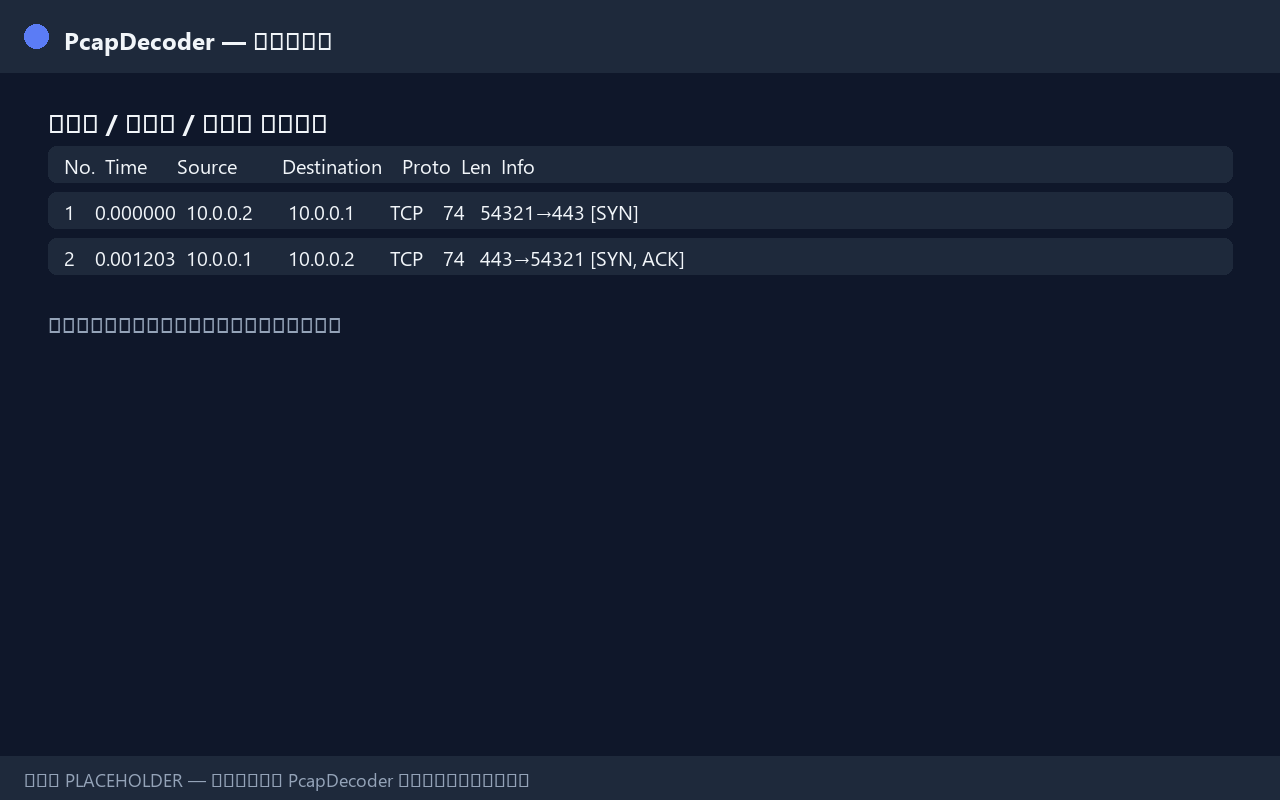
Opening the file is only the beginning. PcapDecoder is designed so that the moment parsing completes, the analysis conclusions are already ready — four steps:
Step 1: Check the dashboard to build the big picture. Once the file is parsed, the dashboard immediately gives you packet count, protocol distribution, top conversations, and the traffic-over-time chart. No commands needed — "what is this file about in general" gets an answer within ten seconds.
Step 2: Tap protocol cards to drill down layer by layer. Common protocols — DNS, HTTP, TLS, QUIC, SIP/RTP, routing protocols (RADIUS/BGP/OSPF) — each have a dedicated card, rendered only when matched, so you don't get a pile of empty cards. Tap any card to see a structured summary of that protocol, not raw data.
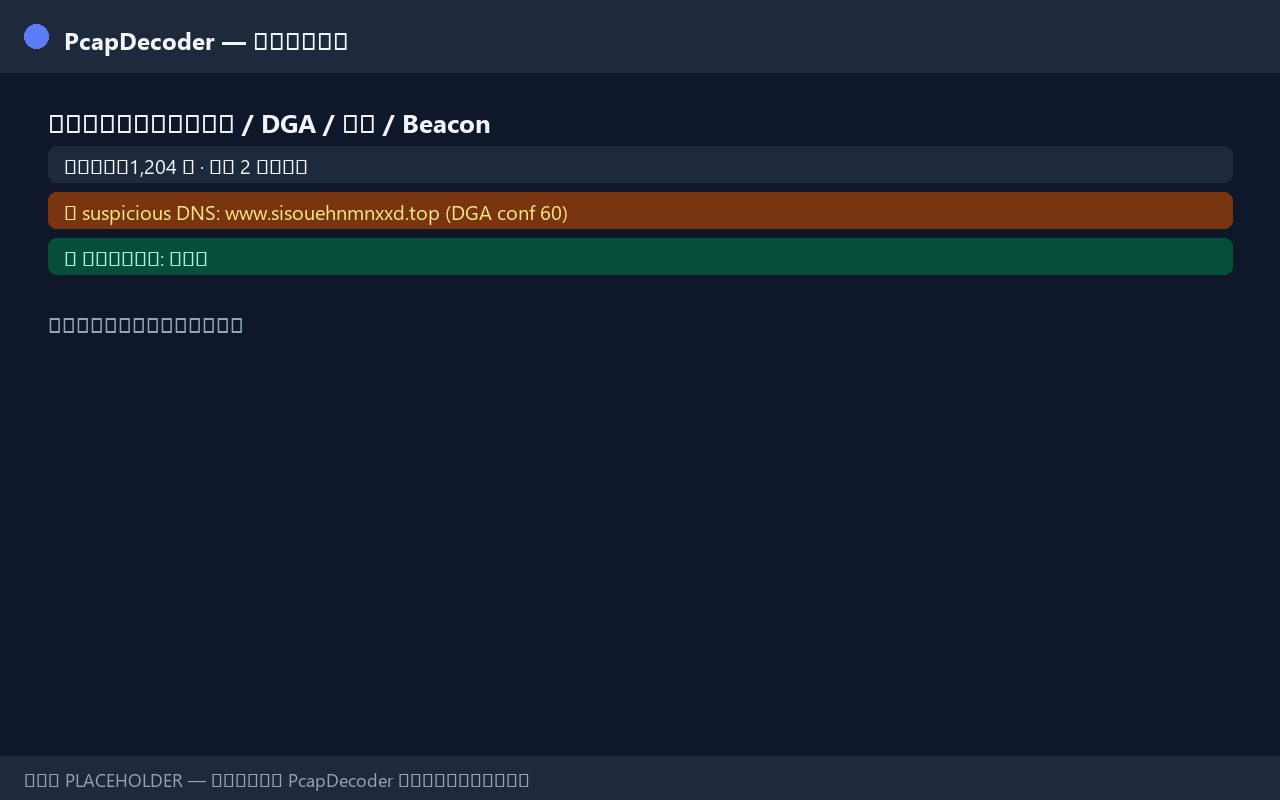
Step 3: One-tap deep scan. Tap "deep scan" and the engine automatically runs threat fingerprints, DGA scoring, DNS tunneling, Beacon cadence, and plaintext credential detection. Results are listed by confidence, each with evidence packet numbers — tap a number to jump straight to that packet.
Step 4: Review the attack timeline. Events found by the scan and anomaly detection are automatically chained into an attack chain over time — which host made suspicious DNS queries first, which IP it connected to afterward, whether data was exfiltrated — all on a single line.
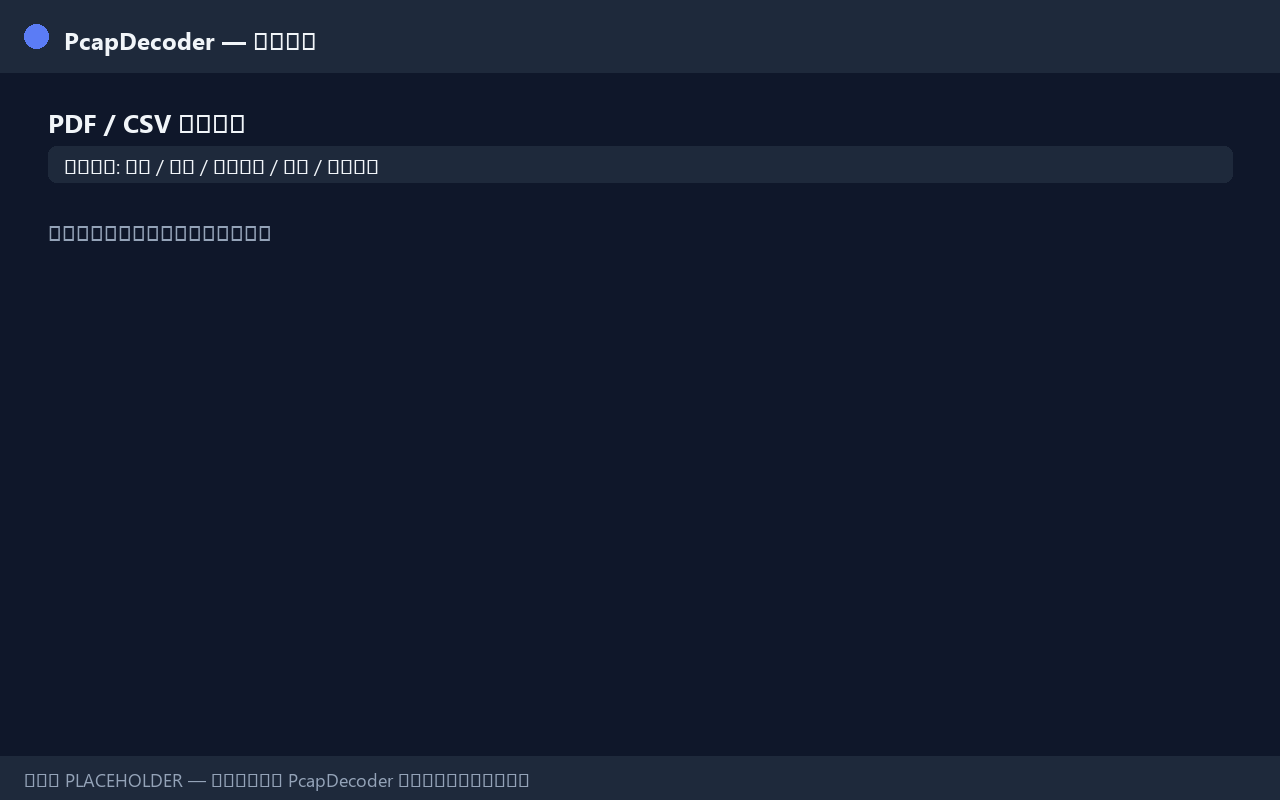
Need to deliver or archive? The report workbench exports PDF/CSV with one tap; the forensics panel provides the file's SHA-256 — ready-made for sample handover, writing reports, and archiving evidence.
Why Your PCAP Won't Open
Ordered by how often each occurs:
1. Misleading extension: the file is actually named capture.txt or has no extension at all, so tools don't recognize it. Renaming it to .pcap/.pcapng fixes it — the contents are unchanged.
2. Truncated file: it wasn't fully transferred via email or IM, or the capture was interrupted when the disk filled up. Check the file tail in a hex editor: a healthy file ends on a complete record, while a truncated file breaks off abruptly at an odd byte count. This is the most common cause of apparent "file corruption" — and the truncated portion is often the final, most valuable packets.
3. Link type too new: certain special capture devices (USB monitoring, Bluetooth) produce non-standard link types that older parsers simply refuse to read. PcapDecoder supports link types such as Linux SLL and USB Monitor.
4. Permissions or file in use: the file is still being written by the capturing process (the capture hasn't been stopped), or you lack read permission. Stop the capture first, then copy the file.
What to Do After Capturing
Opening the file is only the beginning — the real value comes next. A recommended path for newcomers:
- Look at statistics: protocol distribution, top conversations, traffic over time — build the big picture first. PcapDecoder generates these automatically the moment parsing completes, with zero effort;
- Define your target: which IP / domain / port do you care about? Filter first, then examine closely. PcapDecoder's filter bar filters on tap — no syntax to memorize;
- Study the timeline: line up problem-related events chronologically — who came first is often the cause. PcapDecoder's attack timeline links them automatically, with microsecond-precise timestamps;
- Draw conclusions: write down in one sentence "what the problem is, and which packets are the evidence." PcapDecoder's report workbench can export that sentence together with the evidence packets as a PDF — analysis conclusions delivered together with evidence — that closes the loop.
Next up: PCAP vs PCAPNG: What's the Difference and Which to Use, or jump straight in with the filter cheat sheet.