
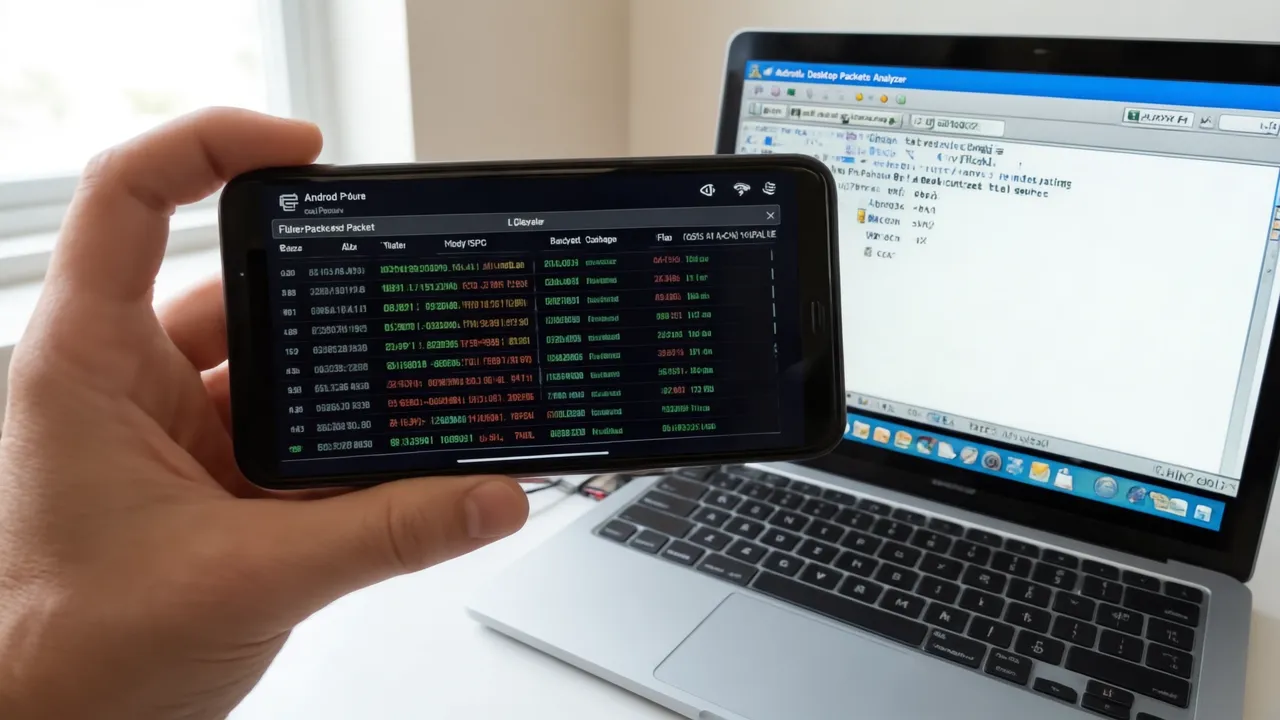
Is There a Wireshark for Android?
Let's get the blunt answer out of the way: there is no official Wireshark release for Android. The apps with similar names you'll find in the store are either remote-desktop wrappers that run Wireshark on some other machine, or utilities that only do live capture — none of them is the full protocol analyzer you're used to on a desktop.
That's why people often conclude that you can't view a pcap on Android at all. That conclusion is premature. The question worth asking isn't "is there a Wireshark for Android" but "can I open this pcap I'm holding, and make sense of what's inside it." Reframe it that way and the picture changes completely: viewing an already-captured file never required Wireshark itself — it only requires something that can parse a pcap.
This is exactly the intent behind the search phrase "wireshark alternative for android." What people are really after is a route to a wireshark alternative for android that lets them open a capture on a phone and understand it — not a literal port of the desktop application.
Two Different Jobs: Capturing vs. Viewing
Before comparing routes, one distinction has to be made upfront or the whole discussion goes sideways: capturing traffic and viewing a capture are two separate jobs. Capturing means recording live traffic off a network interface — it needs drivers, permissions, a VPN service, or root. Viewing means taking a file that already exists and parsing it into protocols, conversations, and fields — all it needs is a parser. Wireshark does both, but nearly every phone scenario you'll hit belongs to the second category: a colleague sent you a file, a customer exported one on-site, or you want to recheck last night's capture on your commute. You already have the file. What you need is to read it.
One boundary worth stating plainly: PcapDecoder's live capture page was hidden on 2026-10-17. Real-time capture, remote SSH capture, and plugin installation are all unavailable right now. So this article won't touch "how to capture traffic on a phone" at all — it covers one thing only: given an offline capture file you already have, how to open and understand it on Android. Narrowing the scope this way is what makes the comparison below meaningful.
Three Routes, Compared
There are roughly three realistic ways to view a pcap on Android. Here's each one laid out.
Route one: remote desktop back to your own computer. Install a remote-desktop client on the phone, connect to your machine at home or in the office, and run Wireshark there. The upside is you're using the tool you already know, with the most complete protocol dissection. The catch is firm: that computer must be powered on, reachable, and have Wireshark installed. On a customer site with a locked-down network, or on a train with no signal, this route simply dies.
Route two: upload to a cloud analysis service. Push the file to an online platform and read the results in a browser. Easy, nothing to install. But capture files routinely contain internal addresses, domain names, and sometimes plaintext credentials — uploading one to a third-party server means the data leaves your device. Many organizations forbid this outright, and chances are you don't want a customer's traffic sitting on someone else's infrastructure either.
Route three: open it locally with an offline app. The file stays on the phone and parsing happens on-device — nothing is uploaded. It doesn't depend on a computer or a network, and the data never leaves; the tradeoff is that a mobile tool usually can't match desktop Wireshark's absolute protocol depth. For the goal of "reading what this capture is saying," that's usually more than enough.
Lined up against what matters most in a phone scenario:
| Dimension | Remote desktop | Cloud analysis | Local offline app |
|---|---|---|---|
| Needs another PC left running | Yes | No | No |
| Needs a network connection | Yes | Yes | No |
| Does the capture leave the device | No | Yes | No |
| File to finding | Slow — connect first | Slow — wait for upload | Fast — parsed on-device |
| Works on a commute / on-site | Poor | Fair | Good |
The verdict is clear: if your goal is "open a file the moment it arrives and read it on the phone," local offline wins on both availability and privacy. That's the route the rest of this article unpacks.
Viewing Offline: From File to Finding
Picture the scenario: a colleague captured incident.pcap on their laptop, sent it to your Android phone over chat, and asked you to check whether it's a DNS problem. Here's the concrete path.
Step 1 — hand the file to the app and open it locally. Once you've received the file, open it with the app through the system's "open with" action, or import it directly into PcapDecoder. Parsing happens on the device; the file goes nowhere. The moment parsing finishes, the global picture is ready — packet count, protocol distribution, top conversations — so scan it first and answer "what shape is this capture overall."
Step 2 — switch to the conversation view and find the endpoints. On a phone the main navigation sits in a bottom bar; switch to Conversations. The list is sorted by packet count, with each row's two endpoints shown at a glance. A DNS issue usually concentrates in a handful of conversations — filter by protocol or address to narrow it down. The goal at this stage isn't any single packet yet; it's locating "who's talking to whom, and which conversation is worth digging into."
Step 3 — open a packet for its protocol tree and hex dump. Select a packet and the detail panel shows two layers: on top, a field tree expanding layer by layer from link to IP to transport to application; below it, the raw hexadecimal bytes (the hex dump). Tapping a field highlights the bytes it maps to. For DNS, look for the query name and the response code — a value like NXDOMAIN means the name didn't resolve, which tells you straight away whether the lookup succeeded.
Step 4 — turn it back into an answer. If the conversations are full of NXDOMAIN replies, or a domain is queried repeatedly with no answer, you have something concrete to report — not "I took a look and something seems off." From received file to stated finding, the whole loop happens on this Android phone, with no network and no upload.
Worth noting: the conversation list, packet detail, protocol tree, and hex dump all operate on a capture file that's already open and offline — none of it involves live capture. Hiding the capture page doesn't affect any of these; the viewing path is intact from end to end.
Why Local Fits the Phone
Having laid out the steps, it's worth explaining the reasoning behind the local route — not just that it's convenient.
One reason is privacy. A capture file is a raw record of network activity: internal topology, business domains, and the contents of plaintext protocols can all be in there. PcapDecoder is built Local-First: files are parsed on-device, and the raw hex and complete pcap are never sent out. Even the AI features default to a tier that sends only metadata and engine reports; the wider tiers that carry the field tree or content analysis require you to opt in explicitly, and the content tier applies sampling and masking — auth headers, cookies, and password-like fields are redacted before anything leaves the device. "Keep the file on your phone" isn't a slogan here; it's a default backed by concrete mechanics.
The other reason is availability. The defining feature of phone usage is that it's unreliable: no signal on the subway, a locked-down network at the customer site, no route back to the office remote desktop while traveling. Local parsing takes "can I read this capture" off the network dependency entirely — with a file and the app, you can open it anywhere. That's precisely where the remote-desktop and cloud routes are weakest.
Local isn't a universal answer, of course. If you're doing protocol development or dissecting TCP window and SACK behavior byte by byte, desktop Wireshark's protocol coverage and plugin ecosystem remain unmatched. But for the specific case of "a pcap landed on my Android phone and I want to understand it right now," local offline viewing is a route that genuinely works — it answers the real question hiding behind "is there a wireshark for android": can I open this file on my phone and read it?
Related reading: "pcap vs. pcapng — What's the Difference?", "New to Packet Captures? Three Views to Read Them In".